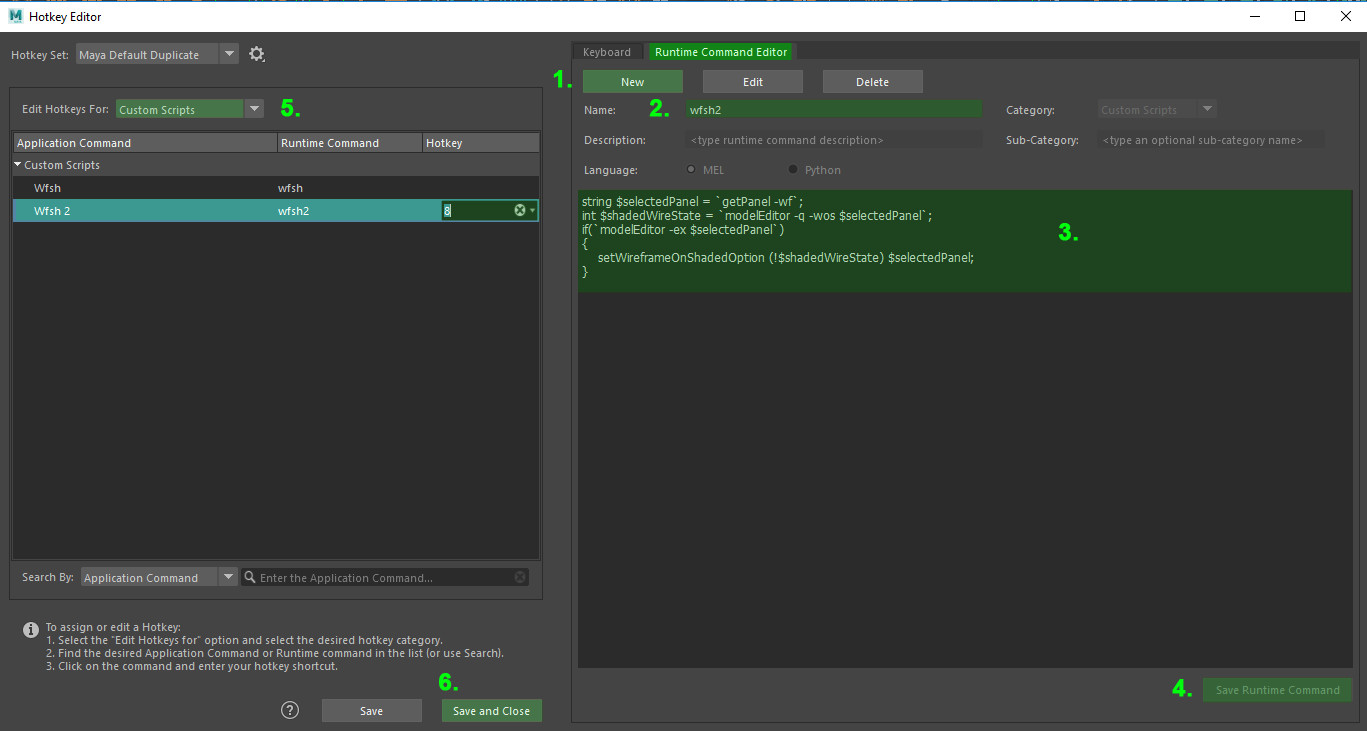
Hi everyone,
I would like to share with you a worfklow that i developed to create a texture atlas from textured props in a non-destructive way. The method presented can be easily adapted according to the 3d software (3dsmax, Blender...) and their available tools.
Autodesk Maya and Substance Painter will be use for the demonstration.
When working on real time environments and props, optimization is an important part so you need to reduce the number of textures, materials, ... used. Really useful to reduce draw calls, an atlas texture map is a single texture that can contain multiple textures for multiple asset.
-----------------------------------
1. Ressources
I selected four different 3d assets made by Dekogon Studios on the Unreal Engine Marketplace. Source: Dekogon Studios / Construction Site VOL. 2 - Tools, Parts, and Machine Props .
Why these one?
- They are free and i know Dekogon Studios creating high quality assets
The main goal?
- Get a final atlas texture map set 2048 pixels with a maximum texture size of 1024 pixels per asset
- Get one material with unique textures maps shared across each of the selected 3d assets

After exported assets and textures from Unreal Engine, for each of them we have :
- Base Color/Diffuse, Roughness, Metallic and Normal (OpenGL) textures maps
- Texture sets 2048 pixels
- UVs unwrapped into the 0,1 UV space
Note:
Dekogon Studios assets use packed texture for the roughness, mettalic and ambient occlusion map like _RMA ( Roughness= Red channel, Metallic= Green channel, Ambient Occlusion=Blue channel). I used Photoshop to extract the stored R,G,B channel data from the _RMA texture and get a Roughness map and a Metallic map.
--------------------------------------------------------------
2. Planning the Atlas map
Planning an atlas map is the most important part of the process, this will be your main reference to keep in mind for all next steps and will determine exactly where each asset will be placed in the final atlas (also you can draw a table on sheet of paper writing the asset name in the respective cell). Sometimes you'll be working with more assets, so make sure you're well organized.
As you know a 2048*2048 texture map can fill up with 4x 1024*1024, 16x 512*512, 64x 256*256 etc.

Thus, from the upper left corner to the lower right corner, we define an order of filling our atlas. Keep the following in mind during the process

--------------------------------------------------------------
3. Atlasing UV Sets in Maya
Import your meshes in Maya and position them in an organized way . The first is on the left , then the second on its right etc.

Select the first mesh (ElectricDrill_01a) and open the UV Editor & the UV Toolkit windows. Unwrapped UVs of the selected mesh are displayed in the UV Editor window, select all UVs shells then we will focus on the Transform panel of the UV Toolkit.
3.1. Configure the Transform panel
UVs Shells are selected and contained in the UVs area.
We are going to position the pivot point of the selected UVs shells on the lower left corner of our UV Area at coordinates 0,0 then apply a downscale of 0.5 (equivalent of 50% ) of our selection and move it with a value of 0.5 (a half of the UV area).

- Select UV Area
- Choose the position of the Pivot , the circle on the bottom left corner
- Set up the step of move at 0.5
- Set up the Scale at 0.5 if value <1 then Maya apply a reduce
The pivot of the selection is now at coordinate 0,0 of the UV Area.

pivot point transformation result
3.2. Reduce and move the selection
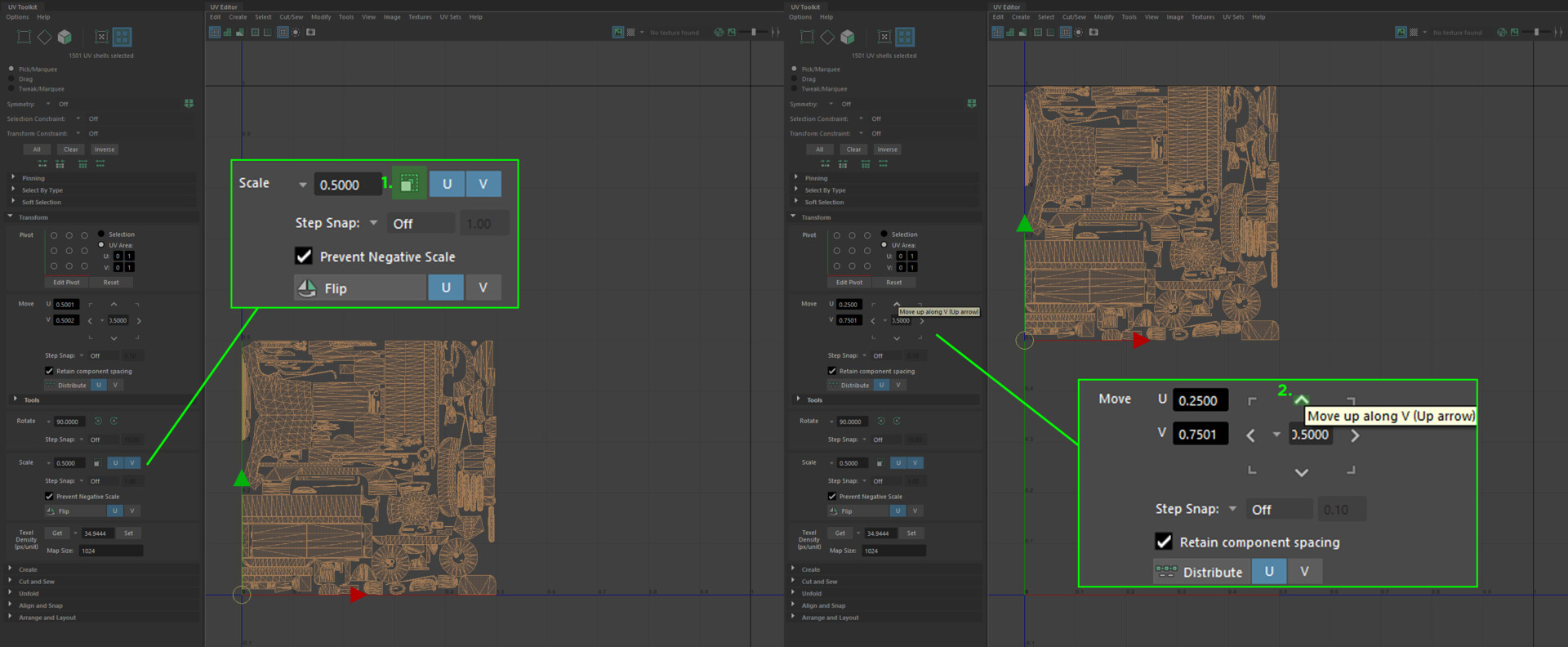
- Click on the Scale button to apply the scale change ( be sure U, V are selected , blue cases)
- Click on the Up arrow of the Move panel (you can also use directional keys of your keyboard)
The UVs of the ElectricDrill_01a mesh are now at the place defined in our atlas. Without applying any changes to our values set in the Transform panel, simply repeat the previous steps for the remaining assets, taking care to respect the atlas planed.

Before exporting, Apply a common material on all selected meshes and rename it (ex: M_atlas_ConstructionTools), doing this will define our unique Texture Set in Substance painter. Now export meshes and go to Substance Painter.
--------------------------------------------------------------------------------------------
4. Atlasing Textured in Substance Painter
4.1 Set up Layers
Start a new project using PBR - Metallic Roughness Alpha-blend (starter _assets) template, choose 2048 as Document Resolution and import your mesh.
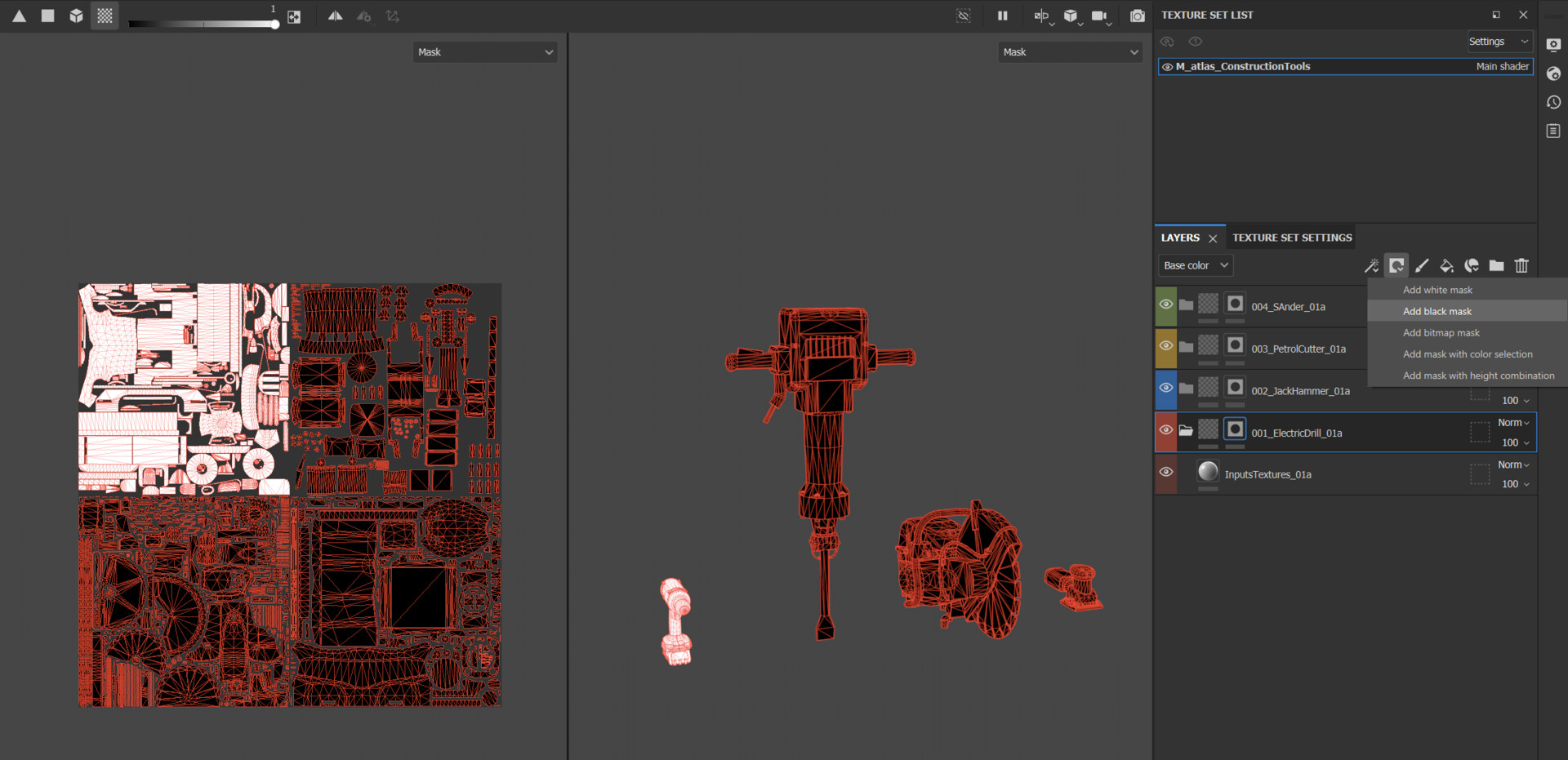
Viewport from Substance Painter
- In the TEXTURE SET LIST tab, we find our common material M_atlas_ConstructionTools
- In the LAYERS tab, it is strongly advised to create and name a folder for each corresponding mesh (001_ElectricDrill_01a, 002_JackHammer_01a, etc. ) , you can also assign a color to differentiate them.
- To isolate the mesh that we are working on, we are going to add a black mask on each folder in which we are going to paint a mask only on the corresponding asset (see example above with the ElectricDrill_01a). Then we add a Fill Layer on which we will place our textures maps (001_InputsTextures_01a, 002_InputsTextures_01a).
4.2. Using UV Transformations
From experience, you should proceed asset by asset whether when importing textures or integrating and transforming textures in Substance Painter.

Import ressources window from Subtance Painter

- windows ASSETS, here you will find textures map imported
- windows LAYERS, select the fill layer 001_ElectricDrill_01a
- windows PROPRETIES - FILL / MATERIAL, activate the necessary inputs (Base Color, Roughness, Metallic, Normal) and drag and drop textures imported to they relativ inputs
Currently our Fill layer Texture has a ratio of 1:1 , with UV transformations values by default.
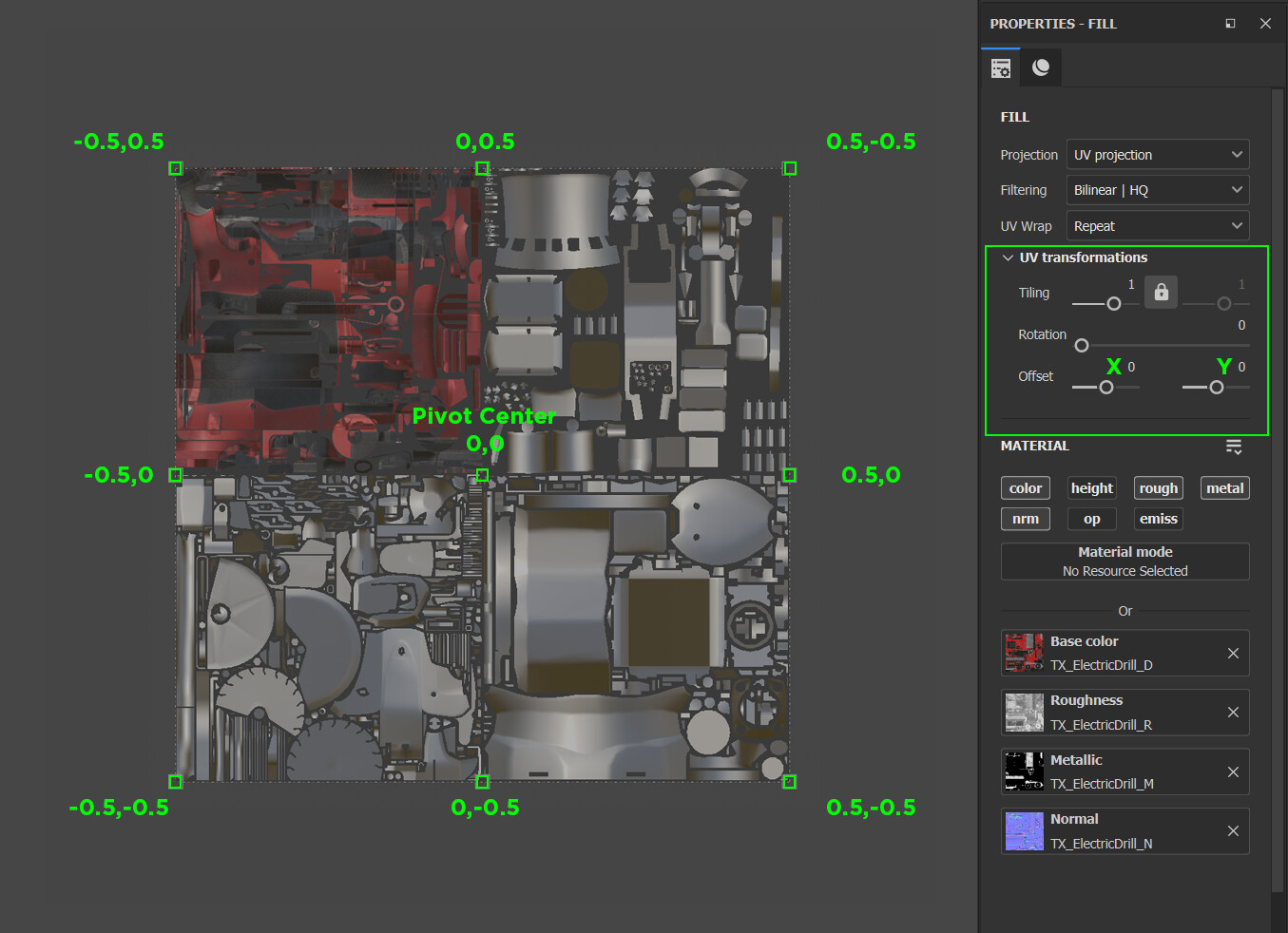
On the image above, coordinates of the different points forming the UV transformation cage of the fill layer (00_ElectricDrill_01a) . The pivot/origin point is in the center.
4.3. UV Transformations
To correctly position our pivot point during the transformation, it must be positioned at the X,Y coordinates equivalent to -0.25,0.25 . We are going to modify the Offset value in X and Y. In a second step, it will be necessary to apply a transformation at the UV scale, this will be done by modifying Tiling values. Since we want to achieve a 50% downscale, this is equivalent to repeating the texture by 2 (Tiling value).

- Change the Offset value in X to -0.25 and in Y to 0.25
- Change Tiling value to 2
Our input texture maps of the ElectricDrill_01a mesh are now perfectly aligned with its UVs.
The same process will be applied to the other remaining props in their own respective folder created earlier, taking care to assign the correct Offset values according to the atlasing plan established

Final preview of texture atlasing in Substance Painter
With this substance painter project, you will be able to export textures maps in any package desired.
Thanks for reading this far, and please let me know if you try it what you think and more.